Chapter 07
Access levels and schedules
Who may open which door, and when, is expressed with two things: a schedule (a weekly pattern of allowed hours) and an access level (a set of doors plus one schedule). People hold access levels. This keeps the rules in one place: change the schedule and every person on that level follows.
Schedules
Open Schedules. Type a name in Add schedule ("Opening hours", "Staff hours", "Cleaners early morning") and press Add, then click the name to open the editor.
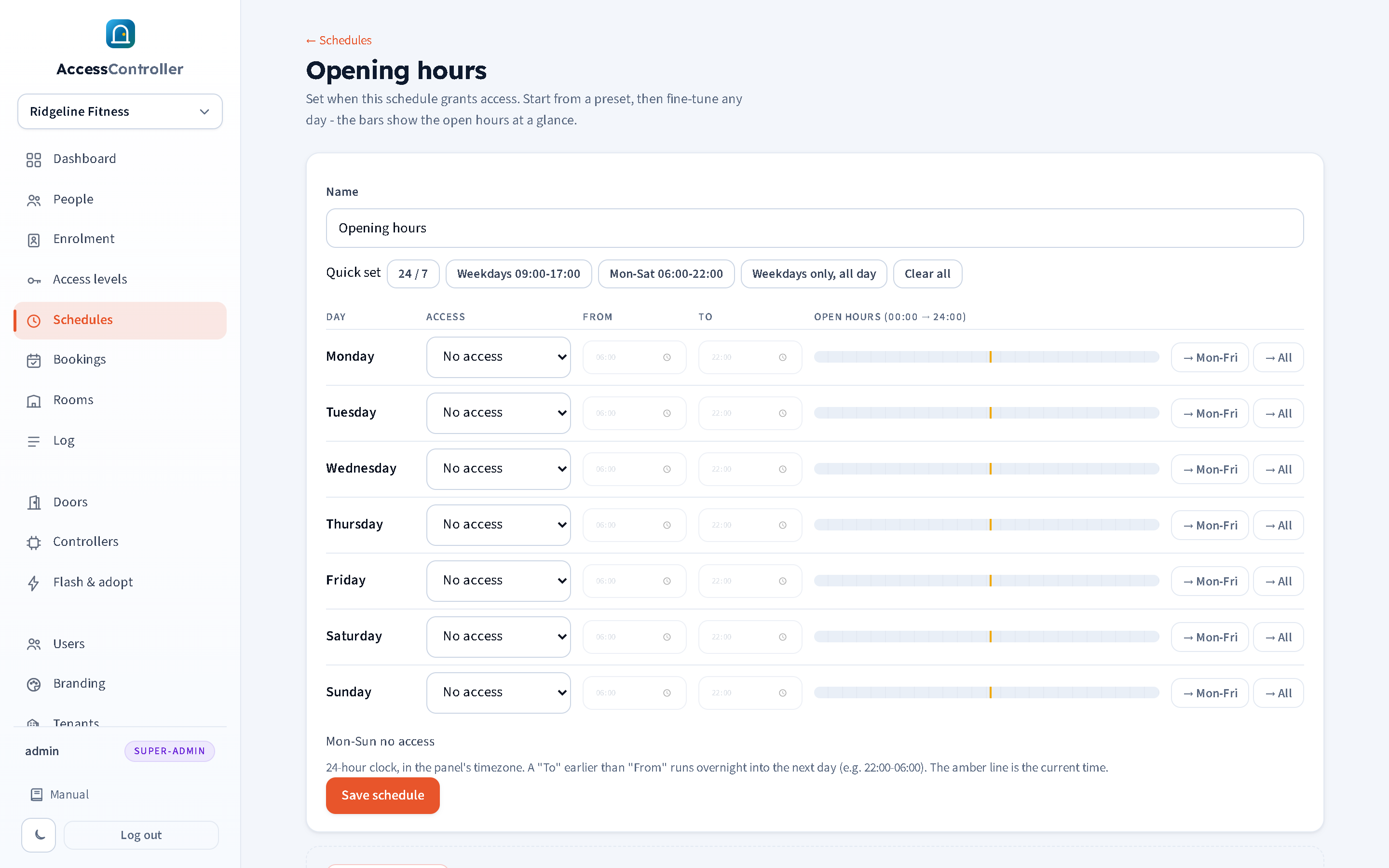
The guided editor
Each day of the week (Monday to Sunday) has:
- Access: No access, Time window or All day.
- From and To times in 24-hour format, used only for a time window. Times step in 5-minute increments.
- A timeline bar showing the open hours for that day at a glance, from 00:00 on the left to 24:00 on the right. An amber marker shows the current time.
- -> Mon-Fri copies that day's setting to Monday to Friday; -> All copies it to every day.
Conveniences:
- Quick set presets fill the whole week in one click: 24 / 7, Weekdays 09:00-17:00, Mon-Sat 06:00-22:00, Weekdays only, all day, and Clear all (no access every day). Start from the nearest preset and adjust.
- Switching a day to Time window fills 09:00 to 17:00 if the times are blank; typing a time switches the day to Time window automatically.
- A To time earlier than the From time runs overnight into the next day: 22:00 to 06:00 means from ten at night until six the next morning. The timeline draws this as two segments.
- The summary line under the grid reads the schedule back in words, grouping identical days: "Mon-Fri 06:00-22:00 . Sat-Sun 08:00-18:00".
Press Save schedule. Times are in the panel's timezone (set by the host; Europe/London by default), and daylight-saving changes are handled for you.
Delete schedule removes it; any access level that used it becomes 24/7, so check the levels afterwards.
Access levels
Open Access levels. In Add level type a name and optional description, choose a schedule (or "No schedule - 24/7") and press Add. Click a level to edit it.
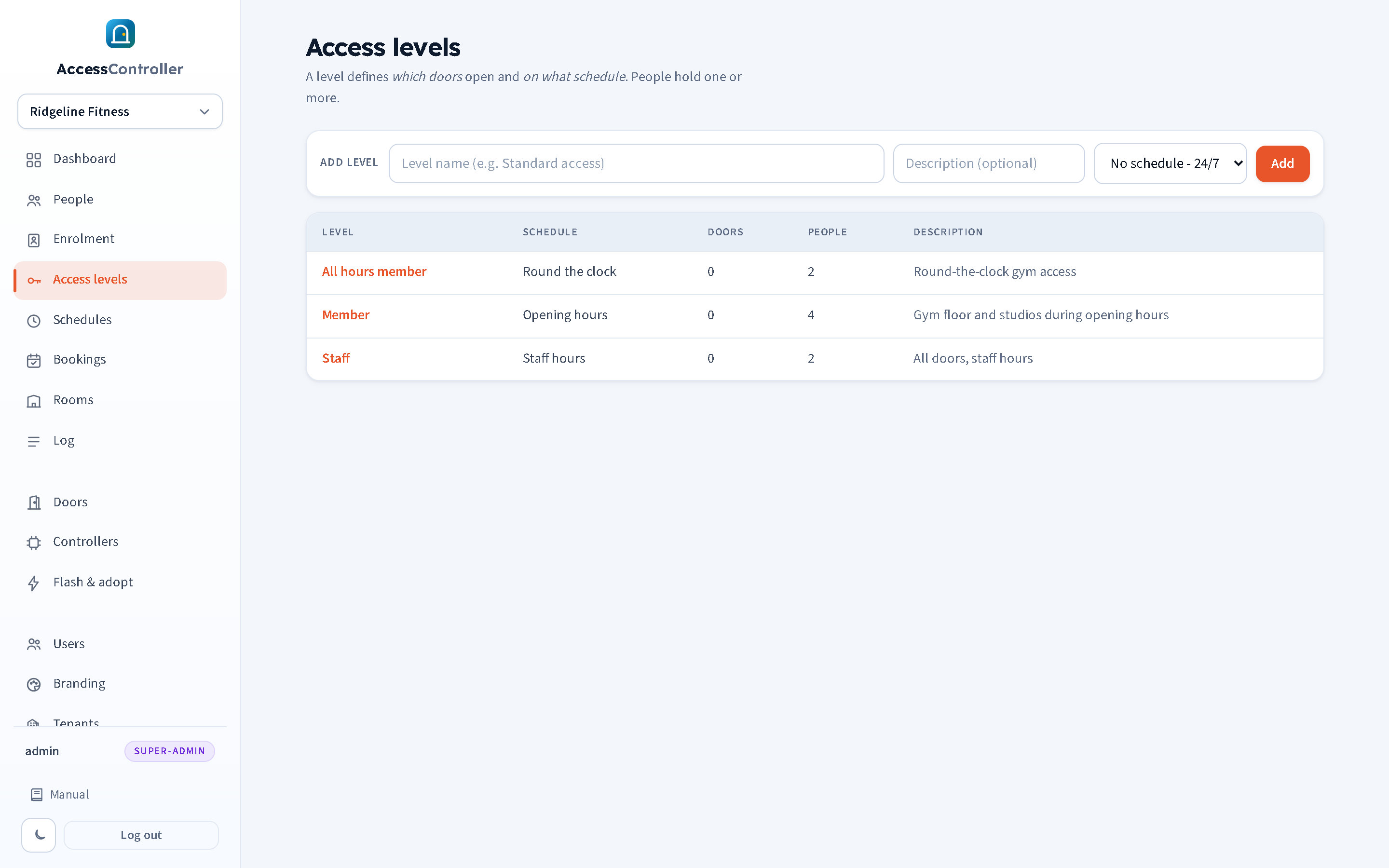
On a level's page:
- Name and Description.
- Schedule: one schedule, or No schedule - 24/7 meaning the doors open at any time.
- Doors this level opens: tick every door the level should include.
Press Save level. Delete level removes it and every person holding it loses that access.
A person can hold several levels; the doors and hours add together. If any one of their levels allows the door at that time, they get in.
Worked examples
The three levels below cover most gyms and offices. Adjust the names and hours to suit.
Example 1: "Members 06:00-22:00"
Ordinary members may use the front entrance and the gym floor from six in the morning until ten at night, every day.
- Schedules > Add schedule "Opening hours". Open it, press the Mon-Sat 06:00-22:00 preset, then set Sunday to Time window 06:00 to 22:00 (or press -> All on Monday's row). Save.
- Access levels > Add level "Members", schedule "Opening hours". Open it and tick Front Entrance and Gym Floor. Save.
- On each member's page tick Members under Access levels and save.
A member scanning at 05:55 is refused with Outside schedule; at 06:00 they are let in.
Example 2: "Staff"
Staff may use every door, including the office and the plant room, from an hour before opening until an hour after closing.
- Schedule "Staff hours": every day Time window 05:00 to 23:00 (set Monday, press -> All). Save.
- Level "Staff", schedule "Staff hours", tick all doors. Save.
- Give staff the Staff level. They do not also need Members.
Example 3: "24/7"
Owners, the cleaning contractor's supervisor and the alarm keyholder need every door at any time.
- Level "24/7 all doors", schedule No schedule - 24/7, tick all doors. Save. (No schedule needs to be created.)
- Give it only to the few people who need it.
Example 4: an overnight window
Night cleaners work 22:00 to 02:00. Schedule "Night clean": Monday to Friday Time window From 22:00 To 02:00. The summary reads "Mon-Fri 22:00-02:00 overnight". Note that a window starting on Friday night runs into the early hours of Saturday, which is what you want; you do not need to add anything on Saturday.
Example 5: a class studio with restricted hours
Studio 2 is only for the yoga membership, on class evenings. Level "Yoga", schedule "Yoga evenings" (Tue and Thu 18:00 to 21:00, everything else No access), door Studio 2. Yoga members hold both Members (front door and gym floor) and Yoga (the studio on those evenings).
What happens when you change something
Every change to a schedule, a level, a person's levels, a fob or a person's status causes the panel to recompile the keyset for each affected door and push it to that door's controller. This usually takes a second or two. You will see the effect on the next scan.
- A controller that is offline at the time receives the new keyset as soon as it reconnects (the last keyset is held for it on the panel's broker), and the panel also re-pushes all keysets every few hours as a safety net.
- Use Check access on the dashboard to confirm the effect of a change without walking to the door.
- Deleting a schedule turns any level that used it into 24/7; deleting a level removes that access from everyone who held it. Both ask for confirmation.