Chapter 12
Users, roles and permissions
A user is a staff login for the panel. Users belong to one tenant and have a role that decides which pages they can see and which they can change. People who open doors (chapter 6) are not users and never log in.
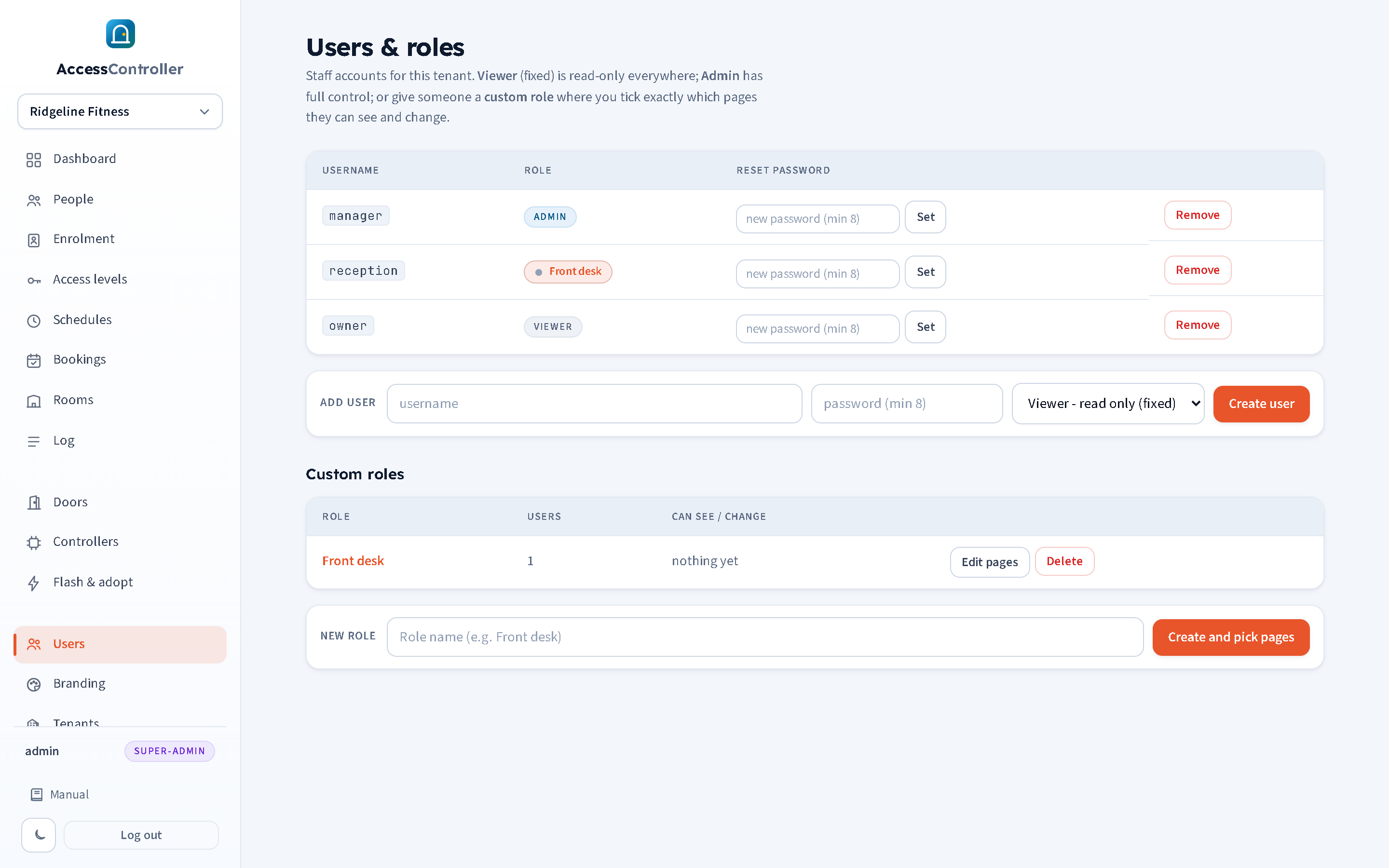
The built-in roles
| Role | Can see | Can change | Notes |
|---|---|---|---|
| Super admin | Everything in every tenant, plus the Tenants page | Everything | The provider's account. Switches between tenants. Created only from the server command line (chapter 16), never from the panel. |
| Admin | Every page in their own tenant | Everything in their tenant | The normal account for an owner or office manager. Can create other admins, viewers and custom roles. |
| Viewer | Every operational page in their tenant (not Settings) | Nothing | Read-only. Edit controls are hidden, not merely disabled, and any attempt to post a change is refused. Good for front-desk staff who only need to look people up and watch the log. |
| Custom | Exactly the pages ticked in the role | Exactly the pages ticked as "change" | Built by an admin on the Users page. |
The role of the signed-in user is shown as a badge at the bottom of the sidebar.
Creating a user
On Users, in Add user: type a username, a password of at least 8 characters, choose Viewer, Admin or one of your custom roles, and press Create user. Usernames must be unique across the whole panel. The new user can sign in straight away.
Resetting a password
There is no self-service reset. In the user's row type a new password (at least 8 characters) into Reset password and press Set. Tell the user the new password out of band and ask them to change it. (Users change their own password the same way, on their own row.)
Removing a user
Press Remove on the row (not available on your own account). Any session the user has is ended.
Custom roles
A custom role is a tick list of pages. Open Users, type a role name in New role ("Front desk", "Membership team", "Installer") and press Create and pick pages.
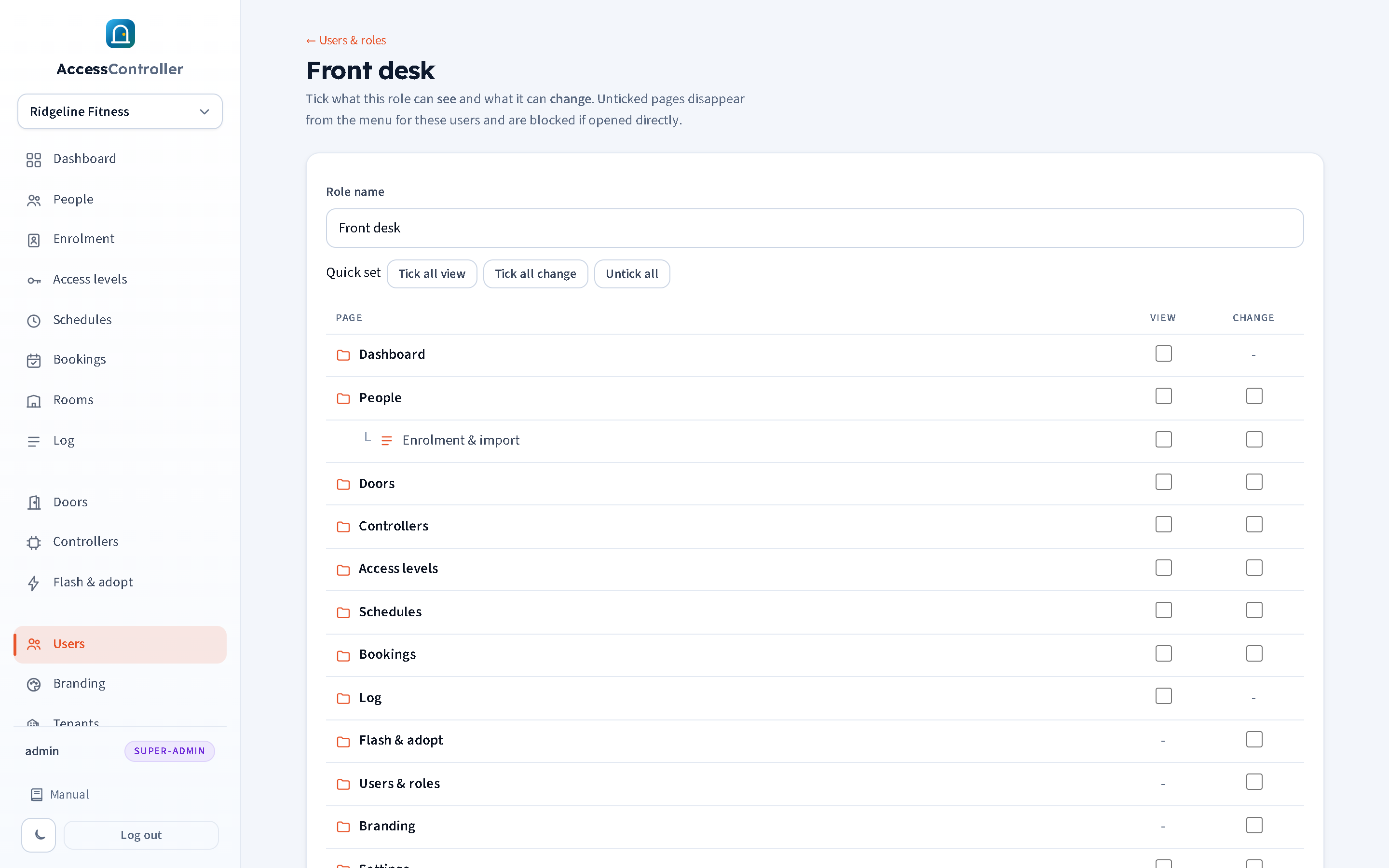
The editor shows the pages as a tree in sidebar order. For each page:
- View: the user can open the page and see its contents. The page appears in their sidebar.
- Change: the user can also add, edit and delete on that page. Ticking Change ticks View as well; unticking View unticks Change.
Some pages behave differently:
- Dashboard and Log are view-only: there is nothing on them to change, so they only have a View tick. (The Check access tool on the dashboard is allowed with View, since it changes nothing.)
- Flash & adopt, Users & roles and Branding are all-or-nothing action pages: they only have a Change tick, and having it means full use of the page.
- Enrolment & import is a child of People; it can be granted on its own.
- Bookings covers both the Bookings and the Rooms pages (chapter 8). There is no way to grant one without the other: anyone who can see bookings can also change the rooms they are made against.
- Tenants cannot be granted to anyone but a super admin.
Quick set buttons tick all View, tick all Change, or untick everything. Press Save role. Pages not ticked disappear from the user's sidebar, and opening them by address redirects the user to the first page they may see with the message "You do not have access to that page". Any attempt to post a change to a page without the Change tick is refused with "read-only account".
Assign a custom role when creating a user (the role appears in the role drop-down as "custom role"). On the Users page the role name is a link to its editor, and the Custom roles table shows how many users each role has and a summary of what it grants. Delete on a role turns its users into viewers.
Suggested roles
| Role | View | Change | For |
|---|---|---|---|
| Front desk | Dashboard, People, Log | (none) | Reception staff who look people up and read the log. Or simply use Viewer. |
| Membership team | Dashboard, People, Log | People, Enrolment & import | Staff who add members and fobs but must not touch doors or schedules. |
| Installer | Doors, Controllers | Doors, Controllers, Flash & adopt, Settings | A contractor commissioning hardware who should not see people. |
| Manager | everything except Users and Settings | People, Enrolment, Access levels, Schedules, Doors | A site manager who runs the day to day but does not administer accounts. |
| Concierge | Dashboard, People, Log, Bookings | Bookings | Front-desk staff for a block with bookable rooms: they can take a booking at the desk, mark a bank transfer paid and cancel, but cannot change people or doors. |
What permissions do not cover
- Per-door or per-person restrictions (for example "may only edit members, not staff") are not available; permissions are per page.
- Viewers and custom roles are always confined to their own tenant. Only super admins cross tenants.
- Super admins cannot be created or promoted from the panel. The provider creates them with the
create-admincommand on the server (chapter 16).