Chapter 08
Room bookings and the resident portal
Some doors are not "who may come in?" but "whose turn is it?": a residents' lounge, a shared gym, a laundry, a meeting room, a treatment room. Access Controller handles these as rooms. A room is an ordinary door that has been made bookable. Residents reserve a slot on the resident portal, a small mobile web page of their own, and a confirmed booking opens that door for them for the length of the slot and nothing else.
Nothing here changes how the rest of the panel works. A room is still a door, a resident is still a person, and a booking is simply another reason the door may open, logged like any other.
When to use a room
Use a room when all of these are true:
- more than one household or team wants the same space at different times;
- you want the door to open for the person who booked it and stay shut otherwise;
- you may want to charge for it, or at least record who had it.
If everyone with a fob may walk in whenever the door is unlocked, you want an access level and a schedule (chapter 7), not a room.
What a room door needs
A bookable room is the simplest door on the site to fit, because nobody needs to present anything at it:
- a door module (the controller channel: the lock relay, and ideally the door position sensor);
- an exit button on the inside, so anyone in the room can always get out;
- no fob reader is required. Residents come in through the portal's Open the door button or by ringing the access line from the mobile they booked with.
Fit a reader anyway if you want residents to be able to fob in during their slot: a confirmed booking is written into the door's keyset as a time window, so their existing fob works for exactly that period. But a room with no reader at all is a supported and cheaper build, and it is what the phone and portal paths exist for.
Note: the panel does not enforce this. Any door on the tenant can be turned into a room, reader or no reader. Wiring it without a reader is a choice you make on site; the software simply never needs one.
Warning: an exit button (or free mechanical egress) on the inside of a bookable room is not optional. Somebody whose slot has just ended must always be able to get out.
Setting a room up
Open Rooms in the sidebar. Rooms and Bookings both appear there for anyone whose role includes the Bookings permission (chapter 12); there is no separate Rooms permission.
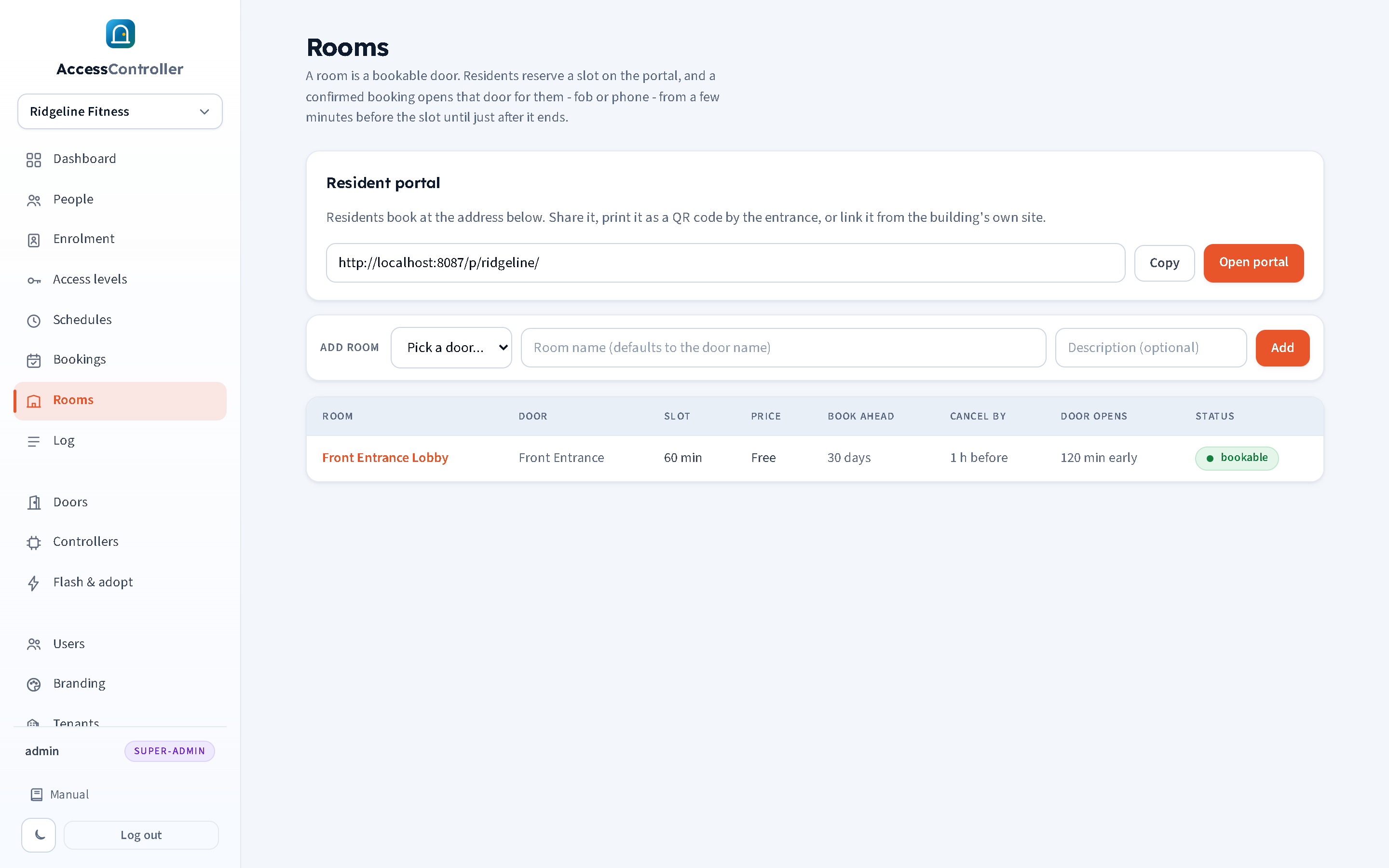
To create one, pick a door from the Add room drop-down (only doors that are not already rooms are offered), optionally type a Room name (it defaults to the door name) and a Description, and press Add. The room is created open Monday to Sunday, 08:00 to 20:00, and you adjust it from there.
The list shows every room with its Door, Slot length, Price, Book ahead window, Cancel by cut-off, how early the Door opens and a bookable or closed status badge. Click a room's name to edit it.
Room settings
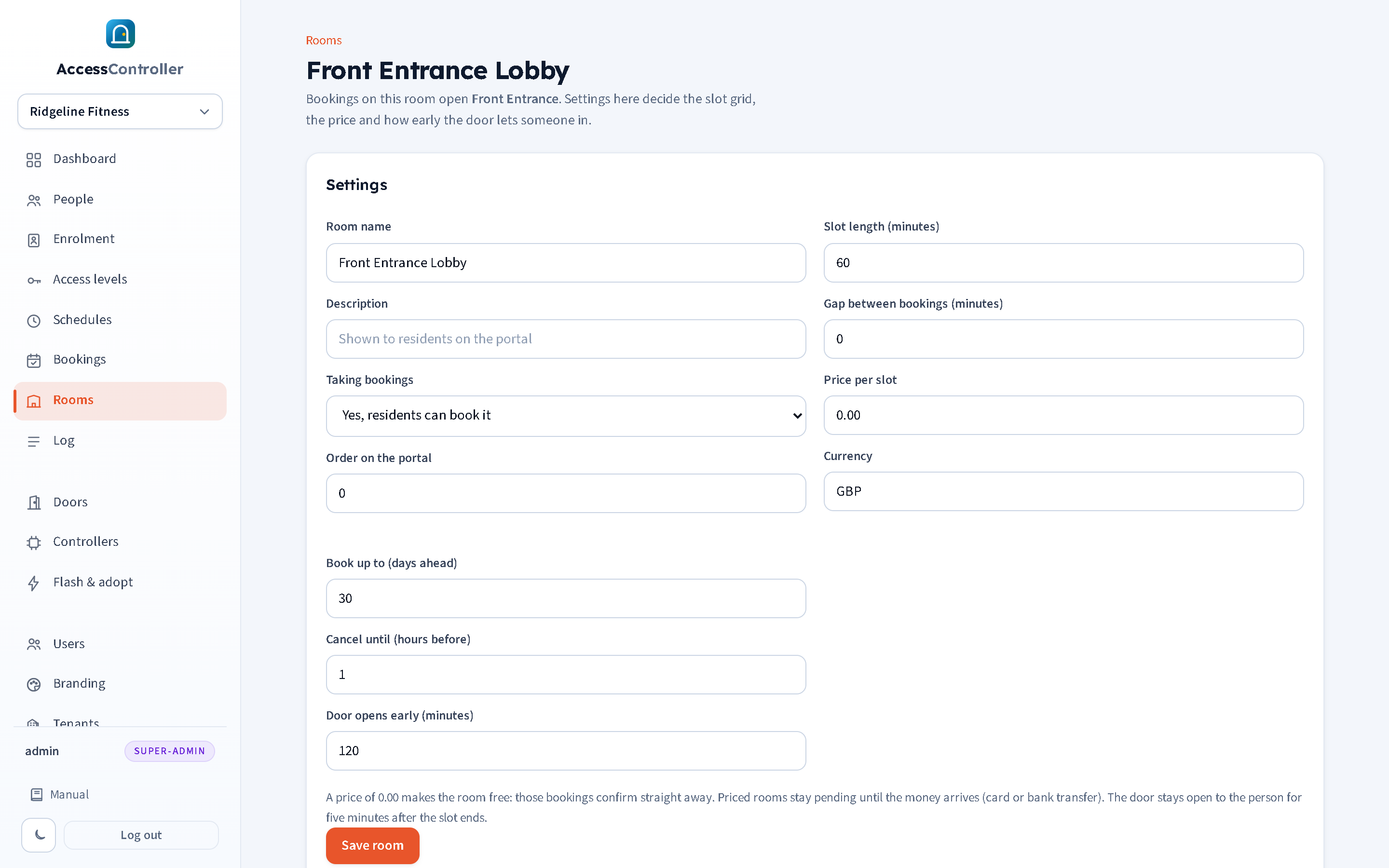
| Setting | What it does |
|---|---|
| Room name | What residents see on the portal. Required. |
| Description | A line of explanation shown under the name on the portal. |
| Taking bookings | Yes, residents can book it or No, hide it from the portal. Hiding a room leaves existing bookings alone; it just stops new ones. |
| Order on the portal | A number. Rooms are listed by this, then by name. |
| Slot length (minutes) | The size of one booking, 5 to 1440. The whole day is cut into slots of this length inside the opening hours. |
| Gap between bookings (minutes) | A buffer applied on both sides of every booking, for changeover or cleaning. A 15-minute buffer round a 60-minute booking blocks the quarter-hour either side of it. |
| Price per slot | Pounds and pence, for example 12.50. A price of 0.00 makes the room free, and free bookings confirm immediately. |
| Currency | A three-letter code, GBP by default. GBP, EUR and USD are shown with their symbol; any other code is shown as the code followed by the amount. |
| Book up to (days ahead) | How far into the future residents may book. 30 by default. |
| Cancel until (hours before) | A resident may cancel their own booking up to this many hours before it starts. 24 by default. Staff can cancel at any time. |
| Door opens early (minutes) | How long before the slot the door starts letting the person in. 10 by default. |
Press Save room. The door's controller is re-sent its keys straight away, because changing the lead time changes access windows that have already been granted.
The door also stays open to the person for five minutes after the slot ends, so nobody is locked in while they gather their things. That grace period is fixed and is not a setting.
Opening hours
The Opening hours panel is a row per day, Monday to Sunday. Tick Closed for a day with no bookings, or give an Open from and until time. The second pair of times (and from ... until) covers a split day, such as a lunchtime close. Times are in five-minute steps. Slots are cut from these ranges and aligned to the slot length, so a room open 08:00 to 20:00 with 90-minute slots simply runs out of room at 18:30 and the last part of the evening is unbookable. Press Save hours.
Extras
The Extras panel adds optional items a resident can tick when booking: a projector, a set of weights, a cot, a cleaning charge. Each extra has a Name, a Price and a Stock. Leave the stock blank for unlimited; a number is the total held across every booking that has not finished yet, so 3 chairs means at most three are out at once. Set an extra to Hidden to retire it without disturbing bookings that already include it. Remove deletes it; bookings that already include it keep the price they were quoted.
Extras appear only on the portal. A booking made by staff from the panel cannot include them.
Removing a room
Remove room at the bottom of the room's page deletes the room and its bookings. The door itself is untouched and goes back to being an ordinary door. Deleting the underlying door on the Doors page removes the room with it.
Publishing the resident portal
The portal is off until you switch it on. Open Settings, expand Bookings and portal and tick Publish the resident portal. The Portal address is the last part of the web address residents use; leave it blank to use the tenant's own short name. It may contain lowercase letters, digits, dashes and underscores, up to 40 characters, and must be different from every other customer's on the panel.
The address is then shown on the Rooms page with Copy and Open portal buttons. It looks like:
https://doors.example.com/p/riverside/Share it however suits the building: a link from the block's own website, a line in the welcome pack, or a printed QR code by the entrance.
There is also a board at the same address with board on the end, for example https://doors.example.com/p/riverside/board. It shows today's confirmed bookings by room and time with names reduced to initials, and needs no login at all. It is meant for a screen or a printout by the room door.
Warning: the board is genuinely public. Anyone who has the address, or who guesses it, can see what is booked today. It shows initials and times only, never full names, numbers or fob codes, but if that is still more than the building wants to publish, simply do not share the board address.
Text messages
Residents sign in with a code sent to their mobile, so the tenant needs an SMS gateway. Under Settings > Bookings and portal > SMS gateway, give the Gateway URL, the Sender name or number and the API key. The panel sends the gateway a JSON POST of to, from and text with an Authorization: Bearer header, which most bulk-SMS providers accept directly or through a one-line adapter.
With no gateway URL set, login codes are not sent anywhere. They are written to the panel's server log and shown on the Bookings page in a Login codes sent panel marked development only, so that a new site can be tested before the SMS account exists. That is a commissioning aid. Never run a live building on it: staff would have to read every resident's code out to them.
The resident's experience
The portal is a small mobile page in the tenant's own logo and accent colour. Everything below is what a resident sees on their phone.
Signing in
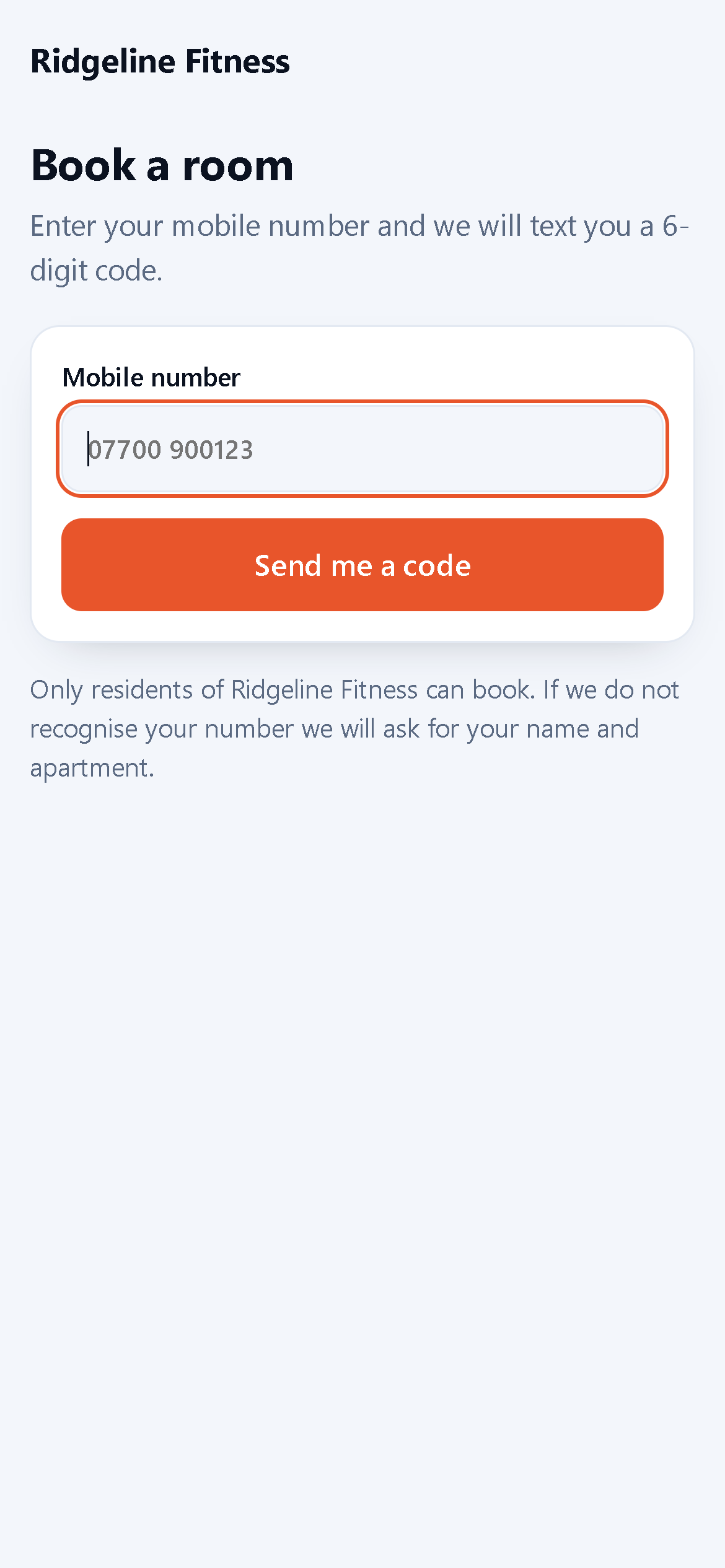
- Book a room asks for their Mobile number. They press Send me a code.
- Check your texts: they type the 6-digit code. It lasts ten minutes, allows five attempts and can only be used once.
- Then one of three things happens:
- If the number matches a person who has an apartment number on file, One more check asks them to confirm it. Three wrong answers lock that number out for 15 minutes.
- If the number matches a person with no apartment number recorded, they are signed straight in.
- If the number matches nobody, Nice to meet you asks for their name and apartment number and creates them as a person in the tenant, noted as Self-registered via the resident portal and recorded in the Log. Staff see the new person on the People page and can attach a fob and access levels in the usual way.
People who are inactive, or in the trash, never match, so they cannot sign in. The session lasts 90 days on that phone, so in practice a resident signs in once.
Note: a resident who changes their mobile number cannot sign in and cannot self-register, because their apartment already exists. Update the number on their person page.
Booking a slot
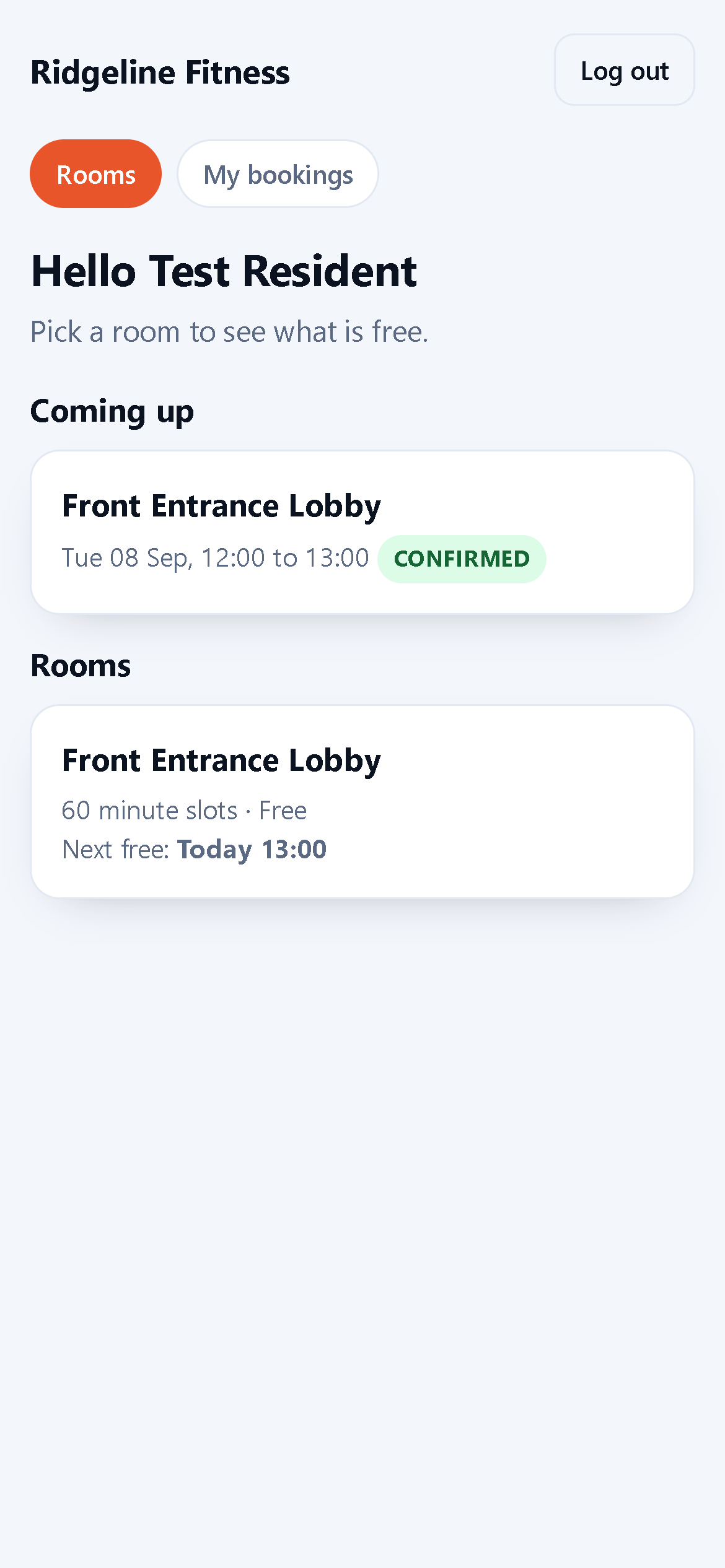
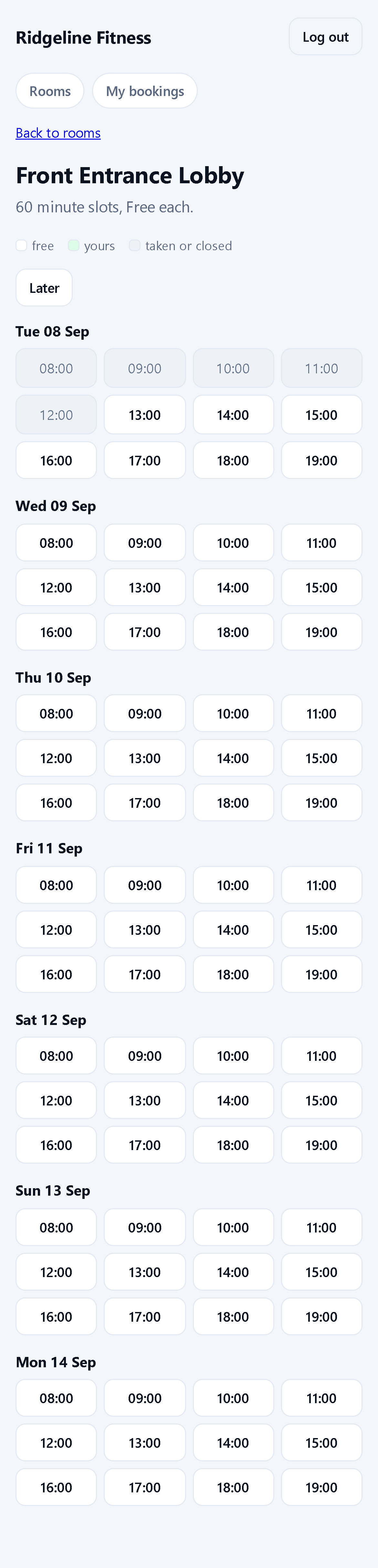
The home page greets them by name and lists their Coming up bookings, then every bookable room with its slot length, price and the Next free time. Tapping a room opens a seven-day grid.
Each day shows its slots colour-coded free, yours or taken or closed; Earlier and Later page through the weeks up to the room's booking window. Tapping a free slot opens Confirm your booking, which shows the room and time, offers any extras with the number left in stock, and totals the price. The button says Book it for a free room and Book and pay for a priced one.
- A free room confirms immediately and the door is theirs.
- A priced room is held, pending payment, and they go to the payment page.
The slot rules are re-checked at the moment they confirm, so two residents racing for the same slot cannot both get it; the loser is told That slot is already booked and sent back to the grid.
Paying
The payment page shows the total and offers whichever methods the building has set up.
- Pay by card takes them to Stripe Checkout and back. The booking confirms as soon as the payment succeeds.
- Pay by bank transfer shows the building's bank details and a reference of the form
BK-RIVERSIDE-42. They quote it with the transfer; the booking confirms when a member of staff marks it paid on the Bookings page.
An unpaid booking does not hold its slot forever. Card bookings are held for 30 minutes and bank-transfer bookings for 120 minutes by default (both are settings), after which the booking expires and the slot goes back on sale. The resident is not shown a countdown, so make the bank-transfer window generous.
During the booking
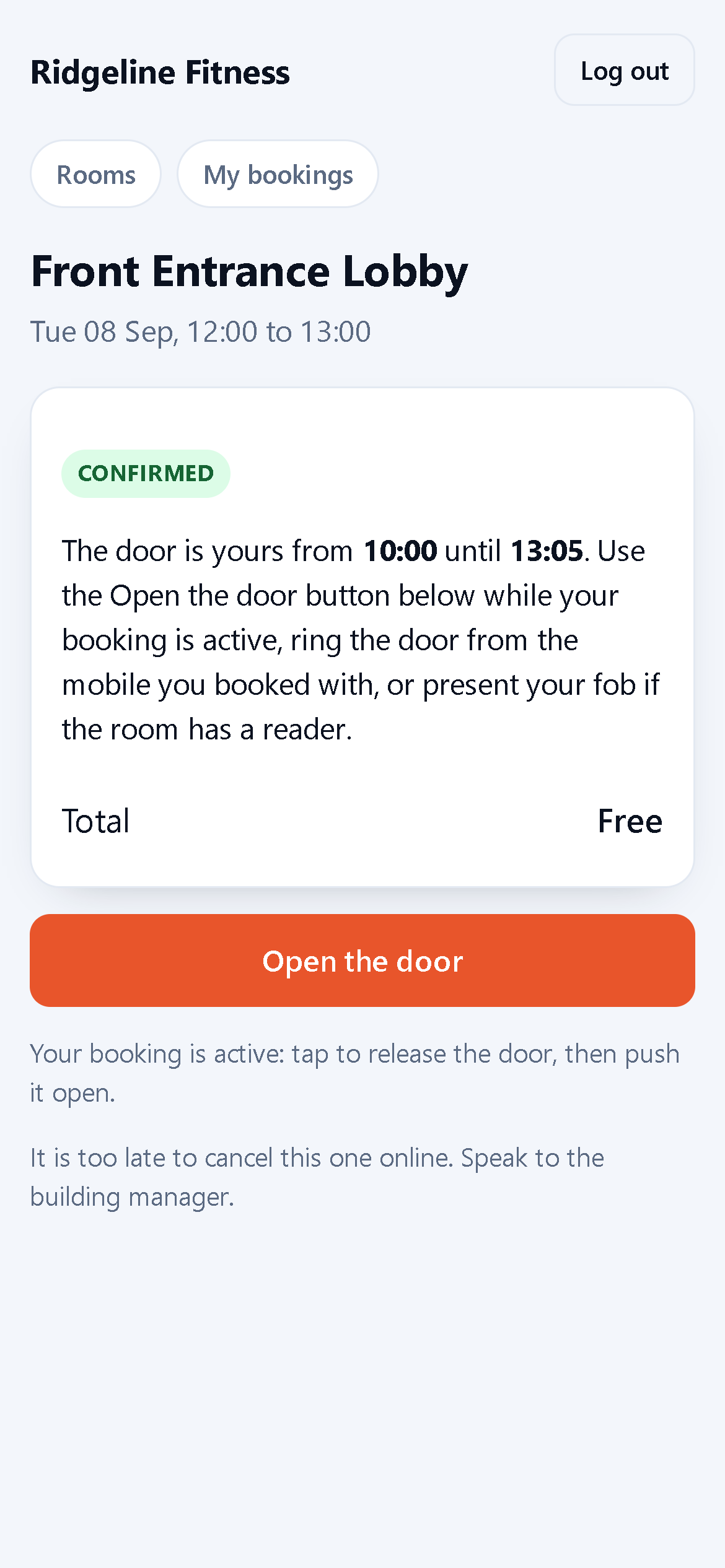
While the slot is running (from the lead time before it starts until five minutes after it ends), the booking page carries a full-width Open the door button. Tapping it releases the door there and then, and the Log records Opened from portal with the booking number. The same person can also:
- ring the access line from the mobile they booked with, which releases the room door for the length of the booking even if they have no phone-release doors ticked at all (chapter 9); or
- present their fob, if a reader is fitted, because the booking is compiled into the door's keyset as an absolute time window.
Outside the window the button is not shown, and pressing it by other means is refused with The door can only be opened during your booking.
My bookings lists everything they have booked, newest first. Cancel this booking is offered while the room's cancellation cut-off has not passed; after that they are told to speak to the building manager.
Note: fob access during a booking needs the current controller firmware. A controller running an older build ignores the booking windows in its keyset and refuses the scan. Update every controller that fronts a bookable room before bookings go live (chapter 5). The portal button and the phone path work whatever the firmware, because the panel sends the unlock itself.
Managing bookings from the panel
Open Bookings in the sidebar.
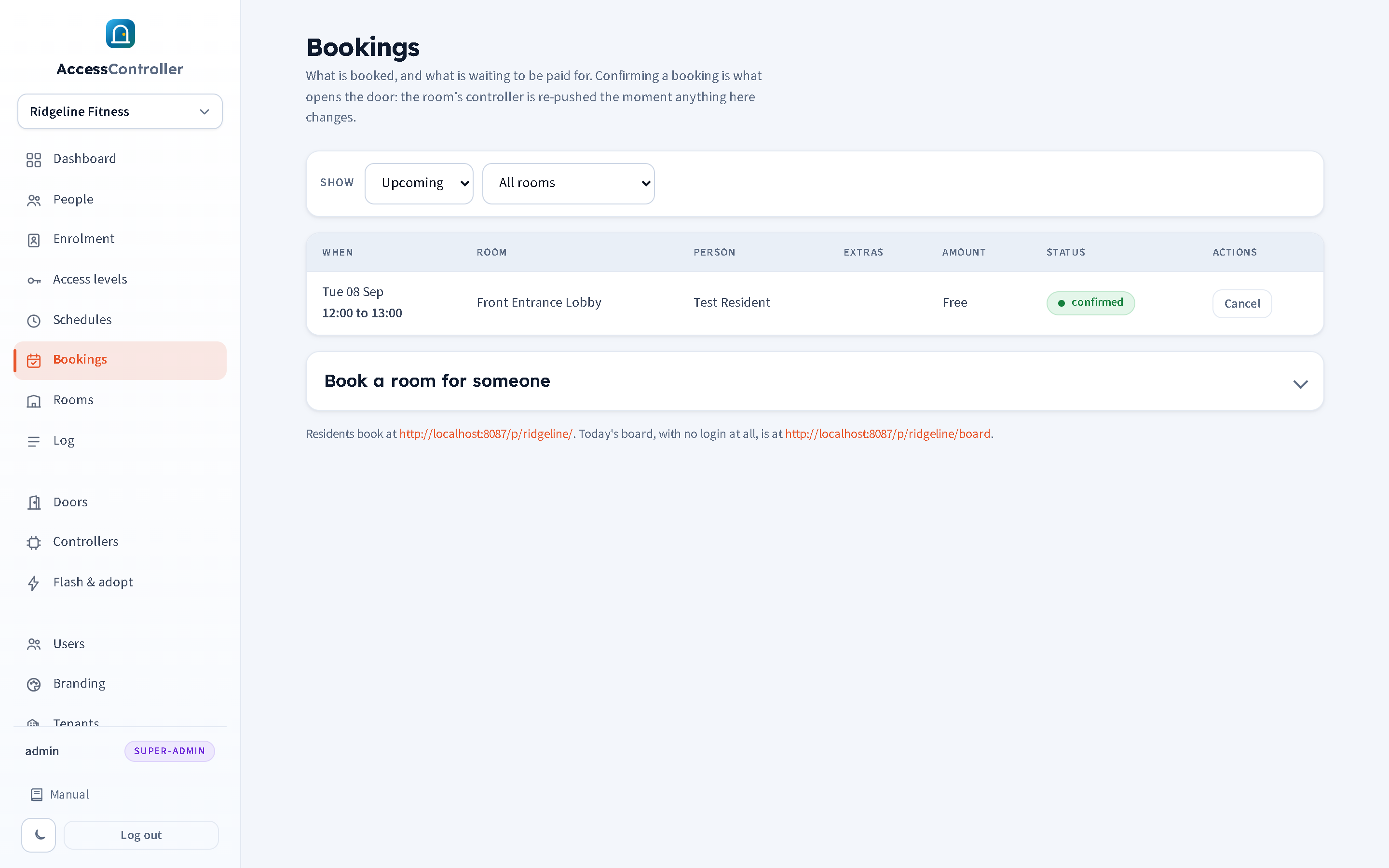
Show filters to Today, Upcoming (the default), Past or Everything, and a second drop-down filters to one room. The table has When, Room, Person, Extras, Amount, Status and the actions available on that row.
| Status | Meaning |
|---|---|
| confirmed | Paid for, or free. The door opens for that slot. |
| awaiting payment | Made but not paid for. Holds the slot until its expiry window runs out. Grants nothing. |
| cancelled | Cancelled by the resident or by staff. Grants nothing. |
| expired | Not paid for in time. The slot went back on sale. |
What staff can do:
- Mark paid appears on any booking that is awaiting payment. Type the reference the bank actually showed (or leave it blank to record the panel's own
BK-reference) and press it. The booking confirms and the door opens for that slot from then on. - Cancel works on a pending or a confirmed booking and takes the door access with it. Staff are not bound by the room's cancellation cut-off.
- Book a room for someone is a panel at the bottom of the page for a resident who has walked up to the desk. Choose the room, the person, a start time and an optional note. The start must land on the room's slot grid inside its opening hours, or the booking is refused with the reason. A free room confirms at once; a priced one is created awaiting payment with a reference to quote. Staff-made bookings cannot include extras.
Note: there is no refund function. Cancelling a booking that was paid for by card does not refund it: do that in Stripe. The panel records access, not money movements.
Every change writes a line to the Log as a Room booking system event, so the history of a booking (created, confirmed, cancelled, expired) is auditable alongside the door events (chapter 11).
Settings reference: Bookings and portal
All of these are on the Settings page, in the Bookings and portal section, per tenant. It has its own Save bookings settings button; the main Save settings button does not save it.
| Setting | Meaning |
|---|---|
| Publish the resident portal | Master switch. While unticked the portal address returns "not found". |
| Portal address | The short name in the portal's web address. Blank uses the tenant's own. Lowercase letters, digits, dash and underscore, up to 40 characters, unique across the panel. |
| Bank details shown on the payment page | Free text shown to residents paying by transfer: account name, sort code, account number. Blank means no bank option is offered. |
| Publishable key (Stripe) | Stored for completeness. Payments work from the secret key alone. |
| Secret key (Stripe) | sk_.... This is the one that matters: with it set, Pay by card appears on the payment page. Shown as a set badge; the field is always blank. Tick Remove the stored secret key and save to erase it. |
| Webhook signing secret (Stripe) | whsec_..., from the webhook you create in Stripe. Handled the same way as the secret key. |
| Hold a bank transfer booking for (minutes) | Default 120. |
| Hold a card booking for (minutes) | Default 30. |
| Gateway URL, Sender name or number, API key | The SMS gateway that delivers login codes. |
Setting Stripe up
- In the Stripe dashboard, take the secret key for the account (test keys while you are trying it out) and paste it into Secret key.
- Add a webhook endpoint in Stripe for the event
checkout.session.completed, pointing at the portal address withstripe/webhookon the end, for examplehttps://doors.example.com/p/riverside/stripe/webhook. - Paste the webhook's signing secret into Webhook signing secret.
- Press Save bookings settings and make a test booking.
The webhook is a belt-and-braces measure: a booking also confirms when the resident is returned from Checkout to the panel, so a site with no webhook still works. The webhook covers the case where the resident closes the browser before the redirect completes.
How bookings reach the door
For anyone who wants to know what is actually happening at the lock:
- Confirming a booking writes an absolute time window, from the lead time before the slot until five minutes after it, against every active fob the person holds.
- The panel recompiles the room door's keyset and pushes it. Up to seven days of bookings ahead are carried, and up to eight windows per fob.
- The controller decides locally, as always. It does not ask the panel when someone fobs in during a booking, so a booked room still works if the internet is down when the slot comes round.
- A minute-by-minute check on the panel re-pushes whenever a window opens or closes, and every confirm, cancel, expiry, staff booking and room setting change pushes immediately.
- The portal's Open the door button and a phone release do not use the keyset at all: the panel sends the controller an unlock command over its existing connection. Those need the panel to be reachable at that moment; the fob path does not.
Limits worth knowing
- One booking per slot per room. There is no capacity, group booking or recurring booking.
- No emails. The system sends one kind of text message, the login code. There are no booking confirmations, reminders or cancellation notices; the portal is the record.
- One timezone for the whole panel (
Europe/Londonunless the host changed it), not one per tenant. - Opening hours allow two ranges a day in the editor.
- Staff bookings cannot include extras, and no refunds are issued from the panel.